How to Use a Code Editor More Efficiently
A code editor is where you will spend the majority of your time as a developer. It is the single tool you interact with more than any other, yet most beginners never move beyond the basics of typing code and saving files. Learning to use your code...
A code editor is where you will spend the majority of your time as a developer. It is the single tool you interact with more than any other, yet most beginners never move beyond the basics of typing code and saving files. Learning to use your code editor efficiently is one of the highest-return investments you can make as a beginner because every improvement compounds across every hour you spend coding.
This guide focuses on practical techniques that work in any modern code editor, though the examples use VS Code since it is the most popular free editor. You will learn about keyboard shortcuts, workspace organization, the integrated terminal, multi-cursor editing, code snippets, and extension management. These are not advanced techniques reserved for senior developers. They are fundamental skills that will make you faster and more comfortable from your very first week.
Understanding Your Editor Layout
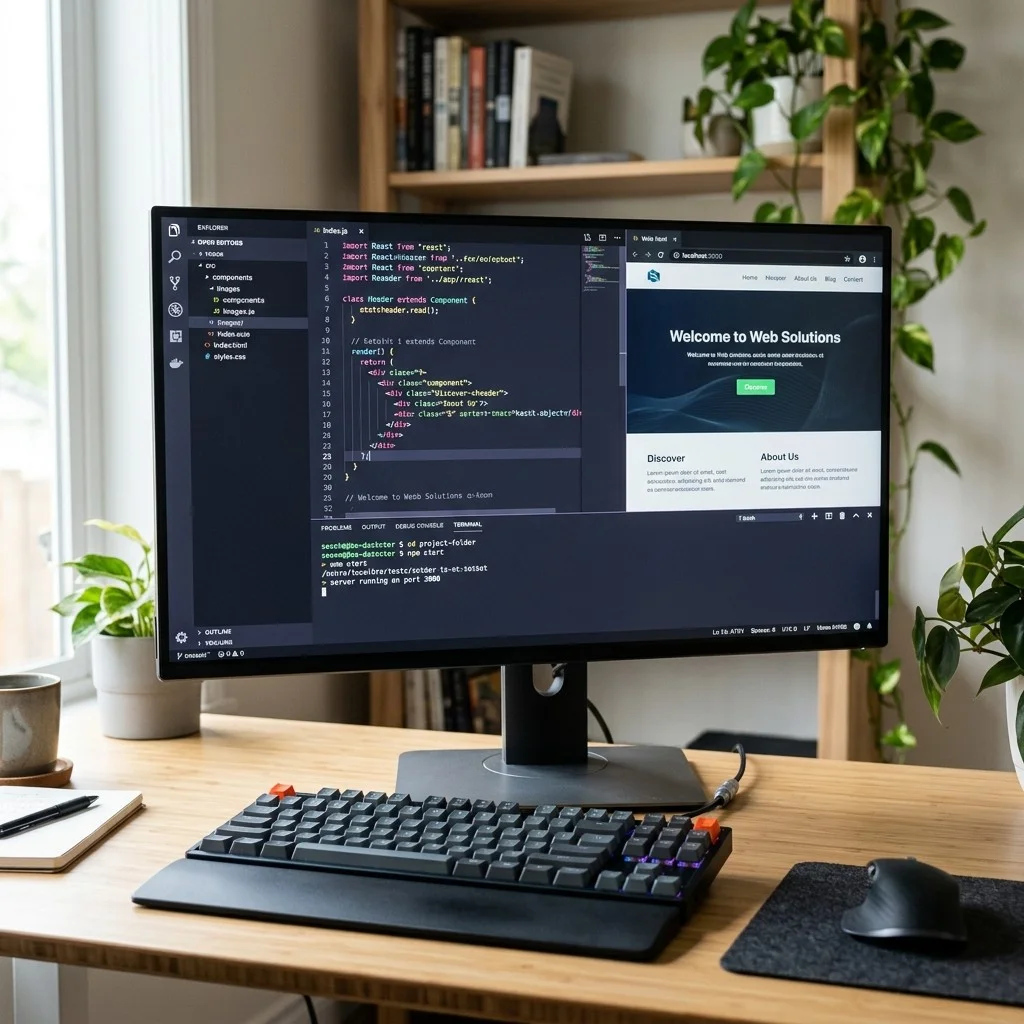
Before learning shortcuts and tricks, make sure you understand the main areas of your code editor:
Code Editor Layout Areas

┌─────────────────────────────────────────────────────┐
│  Activity Bar  │  Sidebar (File Tree)  │  Editor    │
│  (left icons)  │  - project files      │  Area      │
│                │  - search             │  (where    │
│  Explorer      │  - source control     │   you      │
│  Search        │  - extensions         │   write    │
│  Git           │  - debug              │   code)    │
│  Extensions    │                       │            │
│  Debug         │                       │            │
├────────────────┴───────────────────────┤            │
│  Panel Area (toggleable)               │            │
│  - Terminal                            │            │
│  - Output                              │            │
│  - Problems                            │            │
│  - Debug Console                       │            │
├────────────────────────────────────────┴────────────┤
│  Status Bar (bottom) - language, line number, git   │
└─────────────────────────────────────────────────────┘
Essential Keyboard Shortcuts
Keyboard shortcuts eliminate the need to reach for the mouse, which interrupts your flow. Start by memorizing these ten shortcuts. They apply to virtually every code editor, though the exact key combinations may differ slightly:
Top 10 Keyboard Shortcuts for Beginners

Action                      | Windows/Linux    | macOS
──────────────────────────────────────────────────────────
Save file                   | Ctrl + S         | Cmd + S
Undo                        | Ctrl + Z         | Cmd + Z
Redo                        | Ctrl + Y         | Cmd + Shift + Z
Find in current file        | Ctrl + F         | Cmd + F
Find and replace            | Ctrl + H         | Cmd + Option + F
Go to file by name          | Ctrl + P         | Cmd + P
Open command palette        | Ctrl + Shift + P | Cmd + Shift + P
Toggle integrated terminal  | Ctrl + `         | Cmd + `
Comment/uncomment line      | Ctrl + /         | Cmd + /
Format entire document      | Shift + Alt + F  | Shift + Option + F
Practice these shortcuts until they become muscle memory. A good exercise is to code for one hour using only keyboard shortcuts for navigation and editing, resisting the urge to use the mouse.
Multi-Cursor Editing
Multi-cursor editing lets you place multiple cursors in your file and type in all positions simultaneously. This is incredibly useful when you need to make the same change in multiple places.
Multi-Cursor Techniques

Add cursor at specific position:
  Alt + Click (Windows/Linux)
  Option + Click (macOS)
  → Click anywhere to place an additional cursor

Add cursor on line above/below:
  Ctrl + Alt + Up/Down (Windows/Linux)
  Cmd + Option + Up/Down (macOS)
  → Creates a new cursor on the adjacent line

Select next occurrence of current selection:
  Ctrl + D (Windows/Linux)
  Cmd + D (macOS)
  → Highlights and places a cursor at the next match

Select ALL occurrences of current selection:
  Ctrl + Shift + L (Windows/Linux)
  Cmd + Shift + L (macOS)
  → Places cursors at every match in the file
Practical Example
Suppose you have a CSS file where you need to change the color value #333333 to #1a1a2e in fifteen different places. Instead of finding and replacing (which might change values you want to keep), you can select one instance of #333333, press Ctrl+D (Cmd+D) to select each additional instance one by one, verify each selection is correct, and then type the replacement. All selected instances update simultaneously.
Working with Multiple Files
Real projects involve dozens or hundreds of files. Learning to navigate between them quickly is essential:
- Quick file open (Ctrl+P / Cmd+P): Type part of a filename to instantly jump to it. You do not need to type the full name. Typing "ind" might match "index.html", "index.js", and "indicators.css". This is faster than scrolling through the file tree.
- Split editor view: Open two files side by side by dragging a tab to the right edge of the editor, or use the shortcut Ctrl+\ (Cmd+\). This is essential when you need to reference one file while editing another, like viewing an HTML template while writing its CSS.
- Go to symbol (Ctrl+Shift+O / Cmd+Shift+O): Jump directly to a function, class, or variable definition in the current file. Type the name of the symbol and the editor takes you there immediately.
- Go to definition (F12): Place your cursor on a function call and press F12 to jump to where that function is defined, even if it is in a different file.
The Integrated Terminal
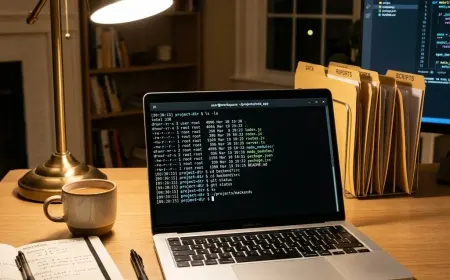
The integrated terminal is one of the most underused features by beginners. Instead of switching between your code editor and a separate terminal application, you can run commands directly inside your editor. This keeps your workflow in one window and lets you see your code and terminal output simultaneously.
Integrated Terminal Tips

Open terminal:     Ctrl + ` (backtick)
Create new terminal: Ctrl + Shift + `
Split terminal:    Click the split icon in the terminal panel
Switch terminals:  Use the dropdown in the terminal panel header
Clear terminal:    Type "clear" (Mac/Linux) or "cls" (Windows)

Common workflows in the integrated terminal:
  - Run your development server: npm run dev
  - Install packages: npm install axios
  - Run tests: npm test
  - Git commands: git add . && git commit -m "update"
  - Run scripts: node script.js or php artisan serve
Code Snippets
Code snippets are templates that expand into commonly used code patterns when you type a short trigger word. Most editors come with built-in snippets, and you can create your own custom ones.
Built-in Snippet Examples (HTML in VS Code)

Type "!" and press Tab:
  → Generates a complete HTML5 boilerplate

Type "div" and press Tab:
  → Generates <div></div>

Type "ul>li*3" and press Tab (Emmet):
  → Generates:
     <ul>
       <li></li>
       <li></li>
       <li></li>
     </ul>

Type "log" and press Tab (JavaScript):
  → Generates console.log();
Creating Custom Snippets
You can create your own snippets for patterns you type frequently. In VS Code, go to File, then Preferences, then Configure User Snippets. Choose the language you want the snippet for and define it using this format:
// Example: Custom JavaScript snippet for async function
{
  "Async Function": {
    "prefix": "afn",
    "body": [
      "async function ${1:functionName}(${2:params}) {",
      "  try {",
      "    ${3:// your code here}",
      "  } catch (error) {",
      "    console.error('Error:', error.message);",
      "  }",
      "}"
    ],
    "description": "Create an async function with try-catch"
  }
}
Essential Extensions for Beginners
Extensions add functionality to your editor. Here are the most useful ones for beginners, organized by purpose:
Recommended Extensions by Category

Code Quality:
  - Prettier: Automatically formats your code on save
  - ESLint: Highlights JavaScript errors and style issues
  - Error Lens: Shows error messages inline, right next to the problem line

Productivity:
  - Auto Rename Tag: When you rename an HTML opening tag,
    the closing tag updates automatically
  - Path Intellisense: Autocompletes file paths when
    you type import or src attributes
  - Bracket Pair Colorizer: Colors matching brackets
    so you can see which ones pair together

Visual:
  - One Dark Pro or Dracula: Popular dark themes
    that are easy on the eyes
  - Material Icon Theme: Adds file-type icons
    to the file tree for faster visual scanning
  - Indent Rainbow: Colors indentation levels
    to make nested code easier to read
Workspace Settings and Configuration
Your editor can be configured at two levels: user settings (apply globally) and workspace settings (apply only to the current project). Workspace settings are stored in a .vscode/settings.json file in your project root.
Recommended Workspace Settings (.vscode/settings.json)

{
  "editor.formatOnSave": true,
  "editor.tabSize": 2,
  "editor.wordWrap": "on",
  "editor.minimap.enabled": false,
  "editor.fontSize": 14,
  "editor.lineHeight": 1.6,
  "files.autoSave": "afterDelay",
  "files.autoSaveDelay": 1000,
  "editor.bracketPairColorization.enabled": true,
  "editor.guides.bracketPairs": true
}
Common Mistakes When Using Code Editors
1. Never Customizing Default Settings
The default settings work, but they are designed for the average user, not for your specific workflow. Spend thirty minutes adjusting font size, tab size, line height, and auto-save behavior to match your preferences. A comfortable editor reduces eye strain and cognitive load.
2. Not Using Format on Save
Manually formatting code wastes time and leads to inconsistent style. Enable "format on save" with a formatter like Prettier, and your code will be automatically cleaned up every time you save. This eliminates debates about tabs versus spaces and ensures clean, readable code.
3. Ignoring the Problems Panel
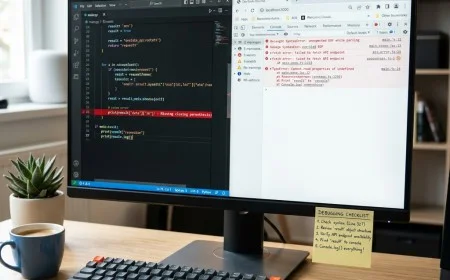
The Problems panel (Ctrl+Shift+M) shows all errors and warnings across your project in one place. Many beginners never look at this panel and miss important warnings that could prevent bugs. Check it regularly, especially before committing code.
Troubleshooting Tips
- Shortcuts are not working: Check if another extension or system-level shortcut is conflicting. Go to File, Preferences, Keyboard Shortcuts and search for the action. You can reassign any shortcut to a different key combination.
- The editor is slow or freezing: Open the Extensions panel and disable extensions one by one to find the problematic one. Also check if the project contains very large files (like compiled bundles) that the editor is trying to index.
- Auto-complete suggestions are not appearing: Make sure the language extension for your file type is installed. Check that IntelliSense is enabled in settings. Restart the editor if suggestions were working previously but stopped.
- Formatting changes code in unexpected ways: Check which formatter is active. If multiple formatters are installed, they can conflict. Set a default formatter in your settings for each language.
Practice Exercise
Complete this efficiency challenge using only keyboard shortcuts:
- Open your code editor and create a new file called
practice.jsusing the command palette (Ctrl+Shift+P, then type "new file"). - Write three JavaScript functions (at least five lines each) using code snippets where possible.
- Use multi-cursor editing to add
console.log()statements at the beginning of each function simultaneously. - Split the editor and open
practice.json the left and a newpractice.htmlon the right. - Use the integrated terminal to run your JavaScript file with
node practice.js. - Track your mouse usage. Every time you reach for the mouse, write down what you were trying to do. After the exercise, find the keyboard shortcut for each mouse action.
Conclusion
Your code editor is more than a text editor. It is a productivity system with layers of features designed to help you write better code faster. Learning keyboard shortcuts, multi-cursor editing, the integrated terminal, and proper extension management transforms your editor from a basic tool into a powerful development environment. Start with the shortcuts listed in this article, practice them daily, and add one new technique each week. Within a month, you will be noticeably faster. For more practical development skills, explore our Programming for Beginners and JavaScript categories.
Frequently Asked Questions
How long does it take to learn keyboard shortcuts?
Most developers become comfortable with the ten essential shortcuts within one to two weeks of deliberate practice. The key is to resist using the mouse when a shortcut exists. Each time you catch yourself reaching for the mouse, pause and use the shortcut instead. This conscious practice builds muscle memory faster than any other approach.
Should I use Vim or Emacs as a beginner?
No. Vim and Emacs have steep learning curves that distract from learning to code. Start with VS Code or a similar modern editor. Once you are comfortable with programming concepts and want to explore different editing philosophies, you can try Vim keybindings as a VS Code extension without committing to a full editor switch.
How many extensions should I install?
Start with five or fewer. Install a formatter, a linter, a theme, and one or two productivity extensions. Only add more when you encounter a specific problem that an extension solves. Too many extensions slow down the editor and can introduce conflicts.
Can I use the same editor settings across multiple computers?
Yes. Most modern editors support settings sync. In VS Code, enable Settings Sync from the Accounts menu to synchronize your settings, extensions, and keybindings across all your devices using your GitHub or Microsoft account.