Developer Tools Every Beginner Should Know About
When you start learning to code, the programming language gets most of the attention. But the tools you use alongside your code editor have an equally significant impact on how quickly you learn and how productive you become. Developer tools are t...
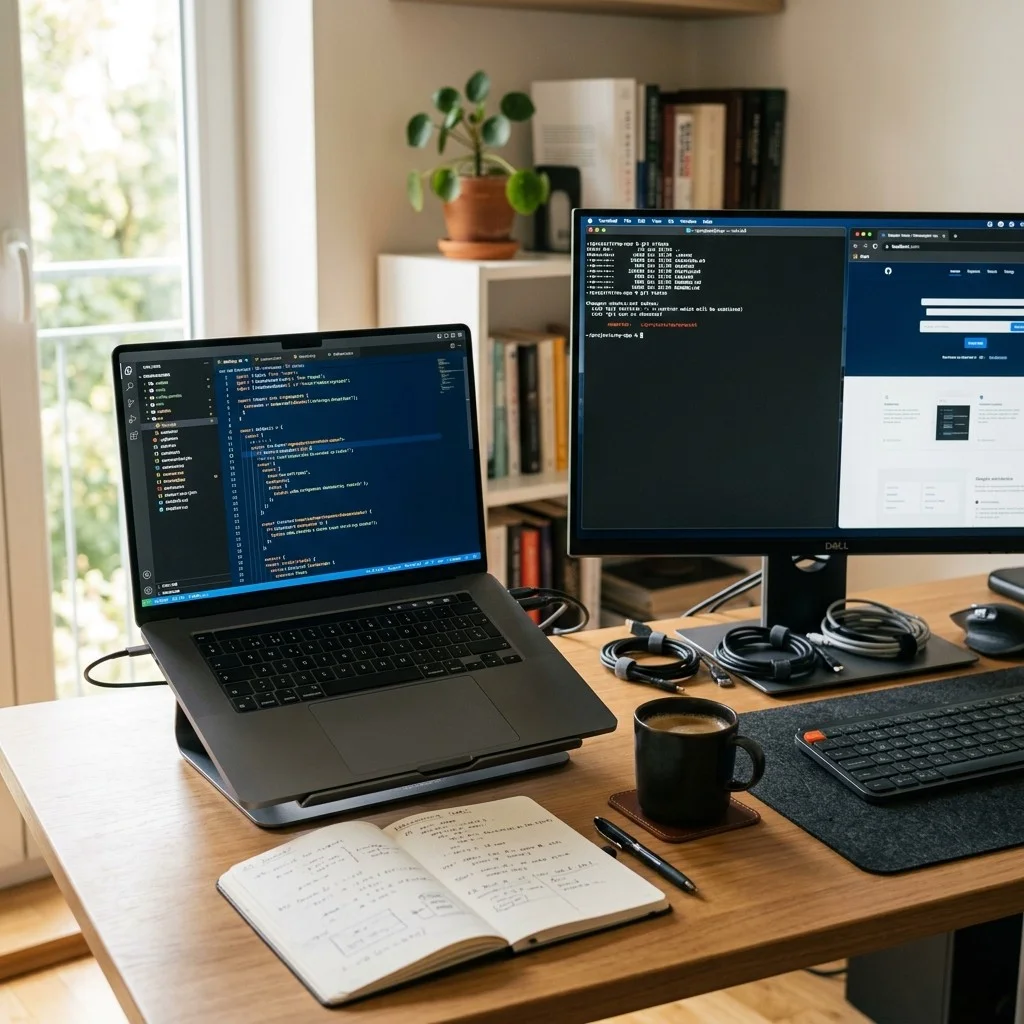
When you start learning to code, the programming language gets most of the attention. But the tools you use alongside your code editor have an equally significant impact on how quickly you learn and how productive you become. Developer tools are the software applications, browser features, command-line utilities, and productivity systems that help you write, test, debug, and manage your code. Knowing which tools exist and when to use them is a skill that separates frustrated beginners from confident, efficient learners.
This guide introduces the essential categories of developer tools that every beginner should be aware of. You do not need to master all of them at once. The goal is to understand what each tool does so you can add them to your workflow as your projects grow in complexity. By the end of this article, you will have a practical overview of code editors, browser developer tools, terminals, version control systems, package managers, and productivity utilities.
Code Editors: Your Primary Workspace
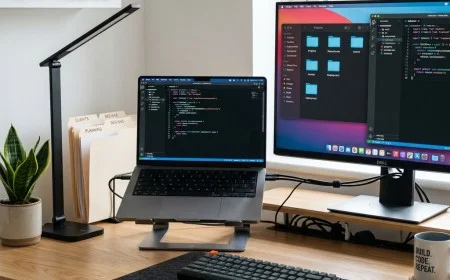
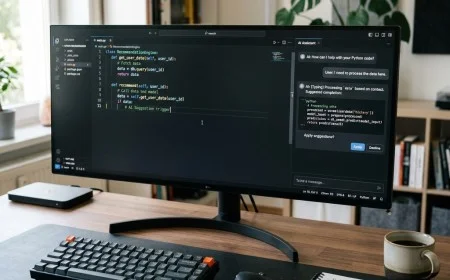
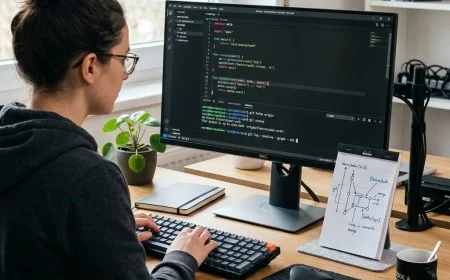
A code editor is the application where you spend most of your development time. It is where you write, read, and edit your source code files. While you can technically write code in any text editor, dedicated code editors provide features that dramatically speed up your workflow.
Key Features to Look For
- Syntax highlighting: Colors different parts of your code based on their function. Keywords, strings, variables, and comments each get a distinct color, making code much easier to read and errors easier to spot.
- Auto-completion: Suggests code completions as you type. When you start typing a function name, the editor offers suggestions from the current file, project, or language documentation.
- Integrated terminal: A command-line interface built directly into the editor so you can run commands without switching windows.
- File tree: A sidebar showing all the files and folders in your project, letting you navigate between files quickly.
- Extensions: Plugins that add new features like linting (automatic error detection), formatting, language support, and theme customization.
Popular Code Editors for Beginners
Code Editor Comparison

Editor          | Free? | Best For
────────────────────────────────────────────────────
VS Code         | Yes   | General-purpose, web development, most languages
Sublime Text    | Trial | Fast editing, large files, lightweight projects
Atom            | Yes   | Customization, beginner-friendly interface
Notepad++       | Yes   | Quick edits, Windows users, simple scripting
WebStorm        | Paid  | Professional JavaScript and TypeScript development
Browser Developer Tools
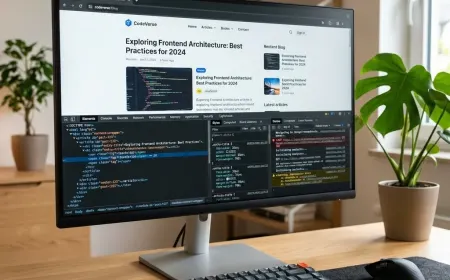
Every modern web browser includes a set of developer tools that let you inspect, debug, and analyze web pages in real time. These tools are essential for anyone doing web development because they show you exactly what the browser is doing with your HTML, CSS, and JavaScript.
You can open developer tools in most browsers by pressing F12 or right-clicking on any element and selecting "Inspect." The most useful panels for beginners are:
- Elements panel: Shows the HTML structure of the page and lets you edit it live. You can change text, add or remove elements, and see the results immediately without modifying your actual code files.
- Styles panel: Displays all CSS rules applied to the selected element. You can add, modify, or disable CSS properties in real time to experiment with visual changes.
- Console: A JavaScript playground where you can run code, view error messages, and test small snippets. The console is your first debugging tool because it shows you runtime errors with line numbers.
- Network panel: Shows every HTTP request the page makes: images, scripts, API calls, and stylesheets. You can see how long each request takes and whether any requests are failing.
The Terminal (Command Line)
The terminal is a text-based interface where you type commands to interact with your computer's operating system. While graphical interfaces use buttons and menus, the terminal uses typed commands. Many development tools, frameworks, and package managers only work through the terminal, making it an essential skill for developers.
Here are the most common terminal commands every beginner needs:
Essential Terminal Commands

Navigation:
  cd folder_name     → Move into a directory
  cd ..              → Move up one directory
  pwd                → Show current directory path (Mac/Linux)
  cd                 → Show current directory path (Windows)
  ls                 → List files in current directory (Mac/Linux)
  dir                → List files in current directory (Windows)

File Management:
  mkdir project      → Create a new directory called "project"
  touch index.html   → Create a new empty file (Mac/Linux)
  echo. > index.html → Create a new empty file (Windows)
  rm file.txt        → Delete a file
  cp source dest     → Copy a file
  mv source dest     → Move or rename a file

Running Programs:
  node app.js        → Run a JavaScript file with Node.js
  php script.php     → Run a PHP script
  python app.py      → Run a Python script
  npm install        → Install project dependencies
  npm run dev        → Start a development server
Version Control with Git
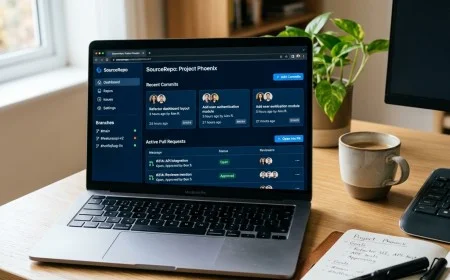
Version control is a system that tracks every change you make to your code files over time. Git is the most widely used version control system, and understanding its basics is non-negotiable for any developer. Git lets you save snapshots of your project (called commits), go back to previous versions, work on experimental features without breaking your main code, and collaborate with other developers.
The essential Git commands for beginners are:
Basic Git Workflow

git init               → Start tracking a new project
git status             → See which files have changed
git add .              → Stage all changed files for commit
git commit -m "msg"    → Save a snapshot with a message
git log --oneline      → View commit history
git diff               → See what changed since last commit
git checkout -- file   → Undo changes to a file
Package Managers
Package managers are tools that automate the process of installing, updating, and managing external libraries and frameworks in your projects. Instead of manually downloading files from websites and placing them in your project folders, you run a single command and the package manager handles everything.
- npm (Node Package Manager): The default package manager for JavaScript and Node.js. Use
npm install package-nameto add a library to your project. - Composer: The package manager for PHP projects. Used extensively with Laravel and other PHP frameworks.
- pip: The package manager for Python. Use
pip install package-nameto install Python libraries.
API Testing Tools
When your application communicates with a server or external service, you need a way to test those API calls independently. API testing tools let you send HTTP requests (GET, POST, PUT, DELETE) to any URL and inspect the response without writing any code. Postman and Insomnia are the two most popular options. They let you save collections of requests, set headers and authentication, and inspect response data in formatted JSON.
Common Mistakes Beginners Make with Developer Tools
1. Using Only One Tool for Everything
Some beginners try to do everything inside their code editor and ignore browser developer tools, the terminal, and version control. Each tool serves a specific purpose. The code editor is for writing code. The browser inspector is for debugging layout and style. The terminal is for running commands. Git is for tracking history. Use the right tool for each task.
2. Not Learning Keyboard Shortcuts
Every developer tool has keyboard shortcuts that dramatically speed up your workflow. Learning even ten shortcuts in your code editor can save you hours per week. Start with the most common ones: save file, find and replace, toggle terminal, go to file, and comment/uncomment a line.
3. Installing Too Many Extensions
Extensions add functionality to your code editor, but installing too many can slow down your editor, create conflicts, and display confusing information. Start with the essentials: a linter for your language, a code formatter, and a theme you find readable. Add extensions only when you encounter a specific need.
Troubleshooting Tips
- Terminal says "command not found": The program you are trying to run is either not installed or not in your system's PATH environment variable. Reinstall the program and ensure the installer adds it to your PATH, or add it manually.
- Code editor is running slowly: Disable extensions you are not using. Close files and tabs you do not need. If the project is very large, consider excluding non-essential directories like
node_modulesfrom the editor's file watcher. - Browser console shows errors you did not expect: Not all console errors come from your code. Browser extensions, analytics scripts, and third-party libraries can all generate errors. Focus on errors that reference your file names and line numbers.
- Git shows "merge conflict": This happens when two different changes affect the same line. Open the conflicting file, find the conflict markers, decide which version to keep, remove the markers, save, and commit the resolved file.
Setting Up Your Beginner Toolkit Checklist
Beginner Developer Toolkit Setup

Essential (Install These First):
  [  ] Code editor (VS Code recommended)
  [  ] Modern web browser (Chrome or Firefox)
  [  ] Terminal (built into your OS)
  [  ] Git (download from git-scm.com)
  [  ] Node.js and npm (download from nodejs.org)

Recommended Extensions:
  [  ] Code formatter (Prettier)
  [  ] Linter for your language (ESLint for JavaScript)
  [  ] Theme you find readable (One Dark Pro, Dracula, etc.)
  [  ] Live Server (for HTML/CSS preview)

Learn These Keyboard Shortcuts:
  [  ] Save file (Ctrl+S / Cmd+S)
  [  ] Open terminal (Ctrl+` / Cmd+`)
  [  ] Find in file (Ctrl+F / Cmd+F)
  [  ] Go to file (Ctrl+P / Cmd+P)
  [  ] Comment/uncomment line (Ctrl+/ / Cmd+/)
  [  ] Format document (Shift+Alt+F / Shift+Option+F)
Practice Exercise
Set up a complete beginner development environment from scratch:
- Install a code editor and configure it with a theme and at least two extensions relevant to your programming language.
- Open the integrated terminal in your code editor and practice navigating to different directories using
cd, listing files withlsordir, and creating a new project folder withmkdir. - Create a simple HTML file, open it in your browser, and use the browser developer tools to inspect an element, change a CSS property, and run a
console.log()statement in the console. - Initialize a Git repository in your project folder, add your files, and make your first commit with a descriptive message.
- Document the entire process in a text file, noting which tools you installed and any issues you encountered.
Conclusion
Developer tools are the infrastructure that supports your coding work. A good code editor, browser developer tools, a terminal, Git, and a package manager form the foundation that every developer builds upon. You do not need to master all of these tools before you start coding. Install them, learn the basics of each one, and deepen your knowledge as your projects demand it. The goal is familiarity: knowing which tool to reach for when you encounter a specific problem. For more hands-on tutorials, explore our Programming for Beginners and Web Development categories.
Frequently Asked Questions
Which code editor should a complete beginner use?
VS Code is the most recommended code editor for beginners. It is free, works on all operating systems, has excellent documentation, a large extension marketplace, and an active community. Most online tutorials use VS Code, which makes following along easier.
Do I need to learn the terminal or can I use graphical interfaces?
You can start with graphical interfaces, but you will eventually need the terminal. Many development tools, package managers, and deployment systems only work through command-line commands. Learning basic terminal navigation early saves you from a steep learning curve later.
How many developer tools should I learn at once?
Start with two: your code editor and the browser developer tools. Once you are comfortable writing and debugging code with these, add Git for version control. After that, learn the terminal and package managers as your projects require them. Trying to learn everything at once leads to overwhelm.
Are developer tools the same on all operating systems?
Most developer tools are cross-platform and work identically on Windows, macOS, and Linux. The main difference is the terminal: Windows uses PowerShell or Command Prompt, while macOS and Linux use Bash or Zsh. The core commands are similar but not identical.